Force exclusive fullscreen, add -novid -high +fps_max 0 +cl_forcepreload 1 to your launch options, kill every overlay running in the background, and turn on NVIDIA Reflex or AMD Anti-Lag 2. That combination fixes most of what makes Counter-Strike 2 feel rough. Prioritize stable frametimes over chasing a bigger number, then confirm the results with cl_showfps 2.
TL;DR:
- Using launch options like -novid, -high, +fps_max 0, and +cl_forcepreload 1 helps reduce stuttering and preload textures, stabilizing frame times.
- Closing overlays, switching to exclusive fullscreen, and enabling Reflex or Anti-Lag significantly lower input latency and micro-stutters during gameplay.
- Lowering resolution and GPU-heavy settings like MSAA and shadow quality increase FPS more effectively than adjusting other visual options.
- Running a warm-up match with shader preload ahead of competitive play prevents freezes caused by first-time effect and prop loading.
- Maintaining a high-performance power plan, updating chipset drivers, and managing background apps can improve overall frame consistency and reduce stutter.
Table of Contents
- Quick Wins for a CS2 FPS Boost in Under 10 Minutes
- Which CS2 Video Settings Actually Move Your Frame Rate?
- Fixing Windows and GPU Driver Issues Behind CS2 Stutter
- Why CS2 Hitches on New Effects and How Launch Options Fix It
- How to Verify Your FPS Fixes Actually Worked
- CPU Optimizations and Affinity Settings for CS2
- Network Settings and Why They Feel Like an FPS Problem
- Memory Management and Virtual Memory Settings for CS2
- Using Windows Game Mode and Priority Tools the Right Way
- What Publishers of Optimization Tools Get Right (and Wrong) About FPS Advice
- Get More Out of Your CS2 Setup With Frostchanger
- Sources
Quick Wins for a CS2 FPS Boost in Under 10 Minutes
You don't need to reinstall Windows or drop $2,000 on a new GPU to feel a difference tonight. Work through these in order. Each one takes under two minutes.
- Add launch options. Right click CS2 in your Steam library, go to Properties, and paste
-novid -high +fps_max 0 +cl_forcepreload 1into the launch options field. This trims the intro video, nudges the process priority, uncaps your frame rate for now, and forces textures to preload instead of streaming mid-match, a fix Tier1Settings ties directly to reduced frame spikes. - Close Discord's overlay, GeForce Experience, and the Steam overlay. Right click each app, disable the in-game overlay setting, and quit any background recording tool. These inject into the render thread and cause micro-stutters that show up as inconsistent frame delivery.
- Switch to Fullscreen, not Borderless. Borderless windowed mode looks convenient for tabbing out, but exclusive fullscreen gives CS2 direct control over your display and typically shaves several milliseconds of latency. Confirm your monitor is actually running at its advertised refresh rate in Windows display settings while you're in there.
- Turn on Reflex or Anti-Lag 2. NVIDIA users should set Reflex to "Enabled + Boost" in the video settings menu. AMD users should enable Anti-Lag 2 through their driver software. Either one lowers input latency by keeping the CPU from getting too far ahead of the GPU.
- Set your Windows power plan to High Performance (or Best Performance on newer builds). Balanced mode throttles your CPU during light loads, and CS2's menu screens and low-action moments can trick Windows into downclocking right before a fight breaks out.
- Lower resolution, MSAA, and shader/particle detail before anything else. These three settings carry the heaviest GPU cost per frame gained.
Pro Tip: Do steps 1 through 5 first and play one match before touching video settings. Half the "low FPS" complaints in CS2 are actually stutter problems, not raw horsepower problems, and this order fixes stutter without sacrificing visibility you didn't need to give up.
Which CS2 Video Settings Actually Move Your Frame Rate?
Resolution has the single biggest impact on GPU load because it directly controls how many pixels get rendered every frame. Dropping to 1280x960 stretched recovers more frames on a GPU-limited system than adjusting almost any other individual setting, according to CSDB's testing on CS2 video settings. That's why competitive players on aging hardware still run stretched resolutions instead of chasing native 1440p.
After resolution, the impact order looks like this:
- Resolution (native vs. stretched vs. 4:3) — largest single lever on GPU-bound systems
- Anti-aliasing (MSAA/CMAA2) — smooths edges but costs real frames at higher settings
- Shadow quality and ambient occlusion — noticeable GPU tax with limited competitive benefit
- Shader detail and particle detail — cheap to lower, minimal visual cost in a fast-paced shooter
- Model/texture detail — smallest impact for most rigs unless VRAM is genuinely constrained
Some settings are worth protecting even when you're trying to squeeze out frames. BO5's competitive settings breakdown recommends keeping Boost Player Contrast enabled and V-Sync off no matter what, since contrast boosting helps you spot enemies against cluttered backgrounds without costing meaningful performance. Dynamic shadows are worth testing individually rather than blanket-disabling, since they sometimes help you read footstep timing on certain maps.
On fps_max, uncapping isn't automatically correct. If your GPU can't sustain a high average, an uncapped frame rate swings wildly between your ceiling and your floor, and that inconsistency is what your hand actually feels. Capping fps_max near your realistic 1% low often smooths perceived motion more than letting the number run wild ever does.
Fixing Windows and GPU Driver Issues Behind CS2 Stutter
A clean driver install fixes more stutter than people expect, because a corrupted or leftover driver profile from a previous GPU generation is a common, invisible cause of frame delivery problems. Tier1Settings lists driver conflicts alongside shader compilation and background apps as the most frequent causes of post-patch stutter.
Run through this list after any major Windows or GPU driver update:
- Use your GPU vendor's clean-install option (DDU for a full wipe, or the standard "clean install" checkbox during a normal driver update) rather than installing over the old version.
- Roll back to the previous driver version if FPS drops or stutter appears immediately after an update. This happens more often than manufacturers admit.
- Set your Windows power plan to High Performance, and on laptops, confirm you're plugged in and running on the discrete GPU, not the integrated one.
- Check that Hardware-Accelerated GPU Scheduling is enabled in Windows Graphics Settings. It usually helps on modern GPUs, but test it both ways since a small number of driver versions handle it worse than off.
- Disable overlays again at the driver level, since GeForce Experience and Adrenalin both run their own background overlay separate from Discord and Steam.
Why CS2 Hitches on New Effects and How Launch Options Fix It
Source 2 compiles shaders the first time an effect actually appears on screen, not when the map loads. That's why your first molotov, your first smoke, or the first time you see a new prop can cause a sudden freeze even on a strong rig. It's not a hardware failure. It's the engine building something it hasn't needed yet.
You can force most of that compilation before it costs you a round:
- Add
+cl_forcepreload 1to your launch options alongside-novid -high +fps_max 0. This tells CS2 to load assets ahead of time rather than streaming them on demand mid-match, a fix DOR's launch options guide recommends as a baseline setup for most players. - Play a 10 to 15 minute deathmatch or casual match before your first competitive queue of the session. Popping smokes, molotovs, and flashes during that warm-up forces the shader cache to populate while nothing is on the line.
- After any driver update, repeat that warm-up match before judging whether the new driver actually helped. Comparing frame rates on a cold shader cache versus a warm one gives you a false read every time.
Pro Tip: Keep a private deathmatch server saved in your favorites specifically for warm-ups. Throw every grenade type once and peek a few different lighting conditions before you queue. It's two minutes that saves you a stuttering opening round.
How to Verify Your FPS Fixes Actually Worked
Open the developer console and type cl_showfps 2. This shows more than the basic FPS counter. It displays frametime graphs that reveal spikes a simple average completely hides, which is exactly the diagnostic CSDB recommends for isolating stutter from raw performance.
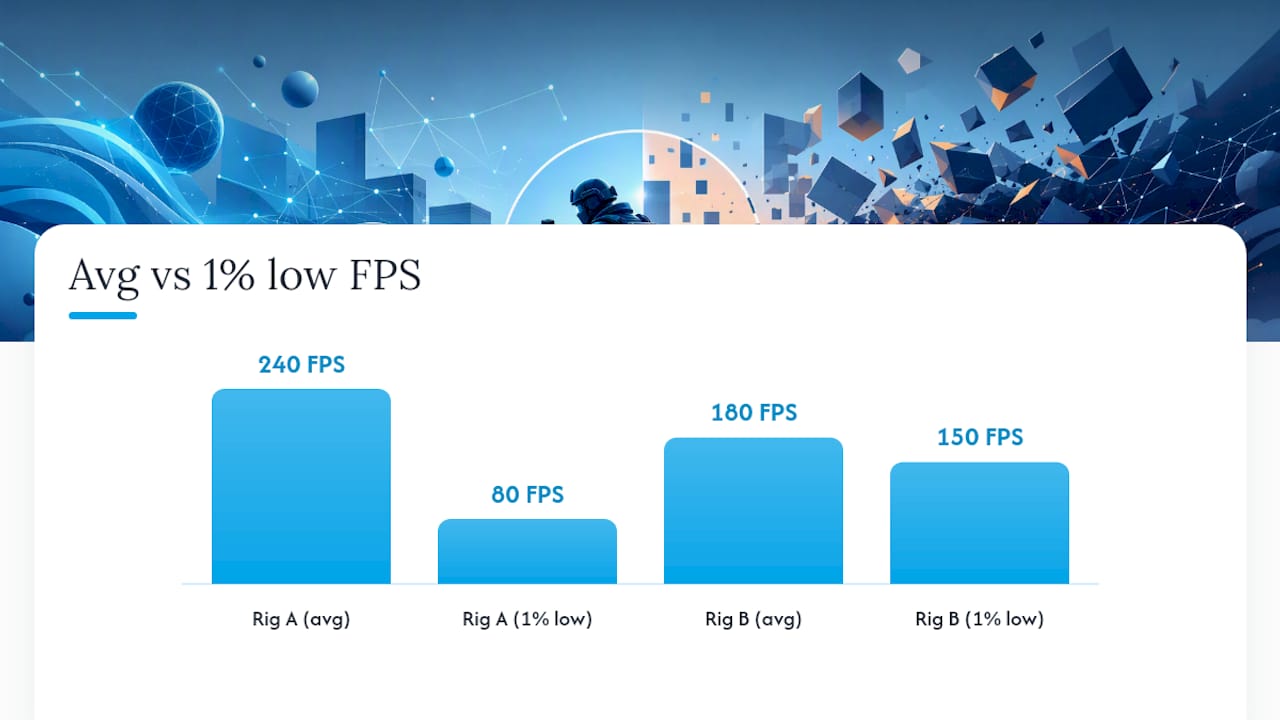
Your 1% low matters more than your average FPS. A rig averaging 240 FPS with a 1% low of 80 feels worse than one averaging 180 with a 1% low of 150, because that 1% low is what you feel during every fight.
| Symptom | Likely cause | Quick check |
|---|---|---|
| Regular spikes every few seconds | Background app or overlay | Close Discord/GeForce Experience, retest |
| Stutter only right after a patch | Shader cache is cold | Run a 10-15 minute warm-up match |
| Gradual FPS decline over a long session | Thermal throttling | Check GPU/CPU temps with HWiNFO or MSI Afterburner |
| Random freezes tied to alt-tabbing | Fullscreen optimization conflicts | Switch to exclusive fullscreen |
| Low FPS from the start, no spikes | GPU-bound or VRAM limited | Lower resolution first, check VRAM usage |
If temperatures climb past what your cooling should allow, or if frametime spikes persist after every software fix above, that's your signal to check thermal paste, dust buildup, or whether your CPU is actually running at its rated clocks.
CPU Optimizations and Affinity Settings for CS2
CS2 is more CPU-dependent than CS:GO ever was, particularly for tick processing and physics on maps with heavy smoke and utility use. If your GPU usage sits well below
while FPS stays low, the bottleneck is almost certainly your CPU or RAM, not your graphics card.Setting CPU affinity, which forces CS2 to run only on specific cores, used to be common advice on older Windows versions and older CPUs with fewer cores. On modern six-core-plus CPUs running Windows 10 or 11, manually restricting affinity usually does nothing or actively hurts performance, since the Windows scheduler already handles core assignment better than a manual override.
What actually helps instead:
- Set CS2's process priority to "High" through Task Manager, or rely on the
-highlaunch option, which does the same thing automatically every launch. - Close background CPU hogs before playing: browser tabs with video autoplay, Windows Update running a scan, or a second monitor running a Twitch stream all steal CPU cycles from the game.
- Check Task Manager's CPU graph while in a match. If one or two cores are pegged at 100% while others sit idle, an outdated chipset driver or a background process fighting for the same core is a more productive thing to chase than affinity settings.
- Update your motherboard chipset drivers, not just your GPU driver. Chipset drivers directly affect how well Windows schedules CPU-heavy processes like CS2's tick simulation.
Network Settings and Why They Feel Like an FPS Problem
Network issues masquerade as FPS problems constantly, and it trips up a lot of players trying to diagnose stutter. A rendering hitch freezes your whole screen. A network hitch usually shows enemies teleporting, your own view snapping, or hit registration feeling delayed while your FPS counter stays perfectly normal.
Use cl_showfps 2 again here, but watch the difference: if the frametime graph stays flat and smooth while your actual gameplay feels jerky, the problem is your connection, not your render pipeline. Open the network graph with net_graph 1 to check your ping and packet loss directly.
A few adjustments that help perceived smoothness even though they're not technically FPS fixes:
- Use a wired Ethernet connection over Wi-Fi whenever possible. Wi-Fi introduces variable latency that Ethernet simply doesn't have.
- Close any app doing large background downloads, especially Windows Update, Steam updates for other games, or cloud backup software, since these saturate your upload and download bandwidth during a match.
- Pick servers with consistently lower ping over servers that are merely closer geographically. Server load matters more than distance on many regional networks.
Fixing network stutter won't touch your FPS counter, but it removes the kind of visual jank that gets blamed on "low FPS" when the frame rate was never actually the issue.
Memory Management and Virtual Memory Settings for CS2
Running low on available RAM forces Windows to lean on your page file, and a page file that's too small or poorly placed causes exactly the kind of stutter that shader warm-ups and driver updates won't fix. CS2 alongside Discord, a browser with a dozen tabs, and Windows itself can eat through 8GB of RAM faster than most players expect.
To check and adjust your virtual memory in Windows: search "Advanced System Settings," open the Performance Options, go to the Advanced tab, and look at Virtual Memory. If it's set to "Automatically manage paging file size," Windows is guessing, and that guess isn't always generous enough for a gaming session with multiple background apps open.
Set a custom size instead: pick your fastest drive (an NVMe SSD if you have one, never a mechanical hard drive) and set both the initial and maximum size to roughly 1.5 times your installed RAM. If you're running 16GB of RAM, that means a page file around 24GB. This gives Windows breathing room without letting the paging file balloon uncontrollably.
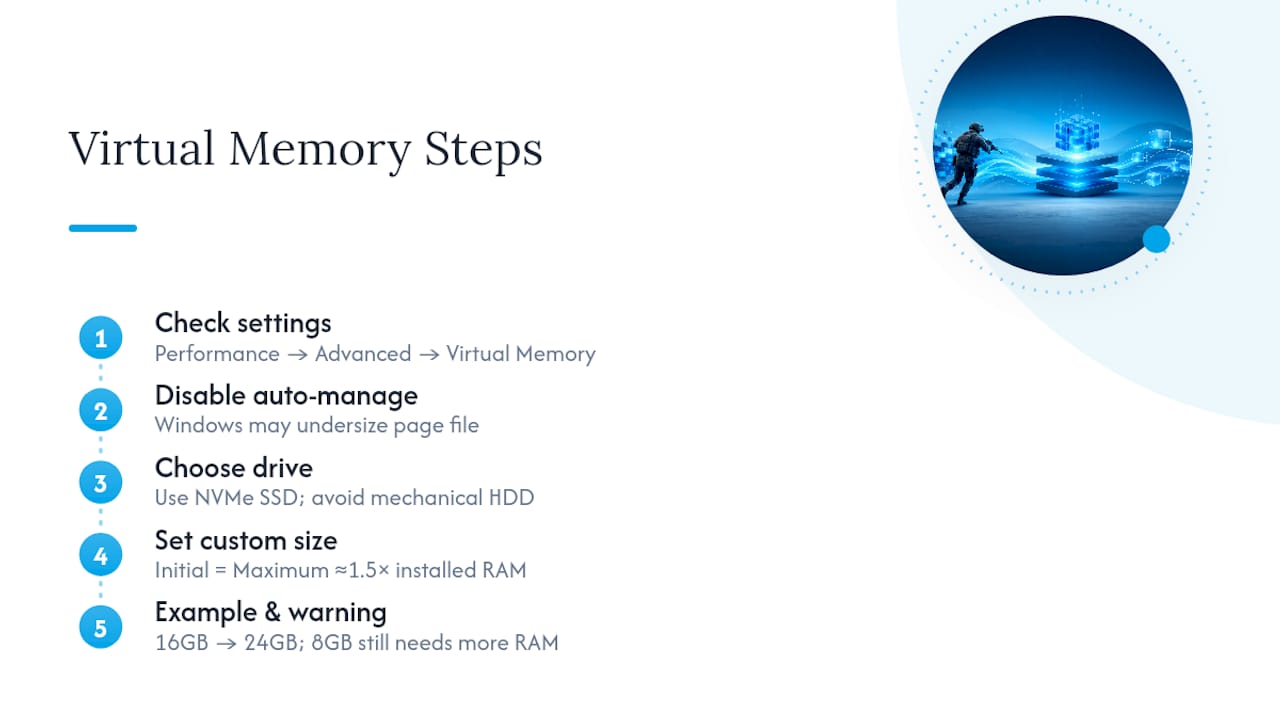
If you're running 8GB of RAM total, treat this as a stopgap, not a real fix. A larger page file on an SSD will reduce some stutter, but 8GB is genuinely tight for CS2 plus a modern Windows install plus Discord and a browser running simultaneously. More physical RAM will always outperform a bigger page file.
Using Windows Game Mode and Priority Tools the Right Way
Windows Game Mode, found in Settings under Gaming, tells Windows to prioritize your game process over background tasks and pause certain notifications and updates while you play. It's not a dramatic fix on its own, but it's free, it takes one toggle to enable, and it removes a category of interruptions without any downside worth worrying about.
Beyond the built-in toggle, dedicated optimization tools go further by adjusting background services, startup processes, and system settings that Game Mode doesn't touch. This is a different category of tool from the in-game graphics settings covered earlier: it works at the operating system level rather than inside CS2 itself.
Frostchanger's own Frozen Tweaks was built for exactly this layer of the problem: trimming background bloat, adjusting system-level settings tied to latency, and helping a gaming PC allocate resources to CS2 instead of splitting them with services you never asked to run. It's a companion to the in-game settings covered above, not a replacement for them. The in-game fixes solve what CS2 itself is doing; a system-level tool solves what Windows is doing around it.
What Publishers of Optimization Tools Get Right (and Wrong) About FPS Advice
Most FPS guides treat every fix as equally urgent, and that's backwards. Frostchanger has spent years building client-side tools for Counter-Strike 2, and the pattern that shows up again and again is that players chase graphics settings changes before they fix the boring stuff: overlays, drivers, and a cold shader cache. Fix the boring stuff first. It's where most of the actual gain hides.
Since 2019, Frostchanger has built the top Fortnite skin changer, launched Elsify for Valorant, and now runs lunaR as the leading CS2 visual customization suite, all client-side and built with a zero ban record. That same client-side philosophy carries into Frozen Tweaks: it adjusts your own system, not the game's files or servers, which is the same safety line every Frostchanger product holds to. None of this replaces a genuine hardware upgrade if your GPU is simply outdated. Software optimization has a ceiling, and pretending otherwise does readers a disservice.
— Blake
Get More Out of Your CS2 Setup With Frostchanger
You've spent this article tuning frametimes and closing overlays. Frostchanger built Frozen Tweaks for the part of the problem that launch options and video settings can't touch: the background noise Windows itself creates around your game.

Frozen Tweaks handles the system-level cleanup covered in the sections above, debloating startup processes and adjusting latency-related settings so your PC stops competing with CS2 for resources. It's the same client-side, install-and-play approach behind lunaR, Frostchanger's CS2 visual customization suite, and every other product in the lineup: nothing touches the game's files, nothing puts your account at risk. If you've already worked through the launch options, driver cleanup, and shader warm-up above and still feel background stutter creeping in, that's the gap Frozen Tweaks is built to close. Head to Frostchanger to check current license options and get it running on your rig today.