
The two fastest ways to cut gaming lag are a wired Cat6 connection and fixing bufferbloat with Smart Queue Management while giving your gaming device top priority in QoS. Run a ping and bufferbloat test before and after to confirm it worked. Switch your DNS to Cloudflare's 1.1.1.1 and pick the nearest game server while you're at it. Those three moves solve most lag complaints without touching a single advanced setting.
TL;DR:
- Using a wired Cat6 connection reduces latency spikes and provides more consistent ping compared to Wi-Fi, which can introduce jitter and micro-spikes.
- Enabling Smart Queue Management with FQ-CoDel or CAKE and setting bandwidth caps to 85-95% of your speed significantly lowers bufferbloat and stabilizes ping under heavy load.
- Positioning and configuring mesh Wi-Fi systems with wired backhaul or connecting your gaming device directly to the nearest node can minimize additional latency from wireless hops.
- Updating network drivers and disabling power-saving features like Energy Efficient Ethernet can reduce micro-latency caused by driver or hardware inefficiencies.
- Activating GPU technologies like NVIDIA Reflex and ensuring your system settings are optimized offers further input latency reduction, complementing network improvements.
Table of Contents
- Quick Wins for Gaming Network Optimization You Can Do Right Now
- Wired Vs Wi-Fi: Which One Actually Matters for Latency?
- How Do You Fix Bufferbloat With SQM?
- Router Settings: QoS, Port Forwarding, and Fixing Double NAT
- Windows and NIC Tweaks That Reduce Micro-Latency
- Do GPU Latency Features Like NVIDIA Reflex Actually Help?
- How Do You Verify Your Network Fixes Actually Worked?
- What Role Do Gaming VPNs Actually Play?
- Why Updating Network Drivers Still Matters
- Are Mesh Wi-Fi Systems Good for Gaming?
- What I'd Prioritize First, and Why
- A Faster Way to Apply These Windows Tweaks
- Sources
Quick Wins for Gaming Network Optimization You Can Do Right Now
Before you touch router firmware or Windows settings, knock out these changes. Most take under five minutes each, and together they solve the majority of lag complaints.
- Plug in a Cat6 Ethernet cable. This alone eliminates most Wi-Fi related latency spikes, and XDA Developers ranks it as the single most impactful change you can make.
- Update your router's firmware. Manufacturers patch latency bugs and security holes regularly, and an outdated router often has both.
- Switch your DNS to Cloudflare (1.1.1.1) or Google (8.8.8.8). Faster DNS resolution shaves milliseconds off connection setup, especially noticeable when joining new lobbies.
- Set your gaming device to top priority in your router's QoS settings.
- Run a baseline speed test and bufferbloat test now, and write down the numbers.
- Pick the closest available game server and temporarily disable any VPN to see if it's adding latency.
- Pause background uploads (cloud backups, game downloads, streaming) before you queue up.
Wired Vs Wi-Fi: Which One Actually Matters for Latency?
A wired connection to your router typically shows tighter, more consistent ping than Wi-Fi, even on a fast wireless setup. Wi-Fi introduces micro-spikes from channel contention, interference from neighboring networks, and the constant handshake overhead of a shared radio medium. You might see 15ms average ping on Wi-Fi that occasionally jumps to 40ms for no obvious reason. That jitter is what ruins headshots in competitive shooters, not the average number.
If running a cable genuinely isn't possible, these steps close most of the gap:
- Force your gaming device onto the 5GHz or 6GHz band instead of 2.4GHz.
- Give your gaming devices their own SSID, separate from smart-home gadgets and guest devices.
- Disable band steering so your console or PC doesn't get bounced between bands mid-session.
- Position the router with a clear line of sight to your gaming setup, away from walls and metal cabinets.
- If you use a mesh system, connect satellite nodes with a wired backhaul cable whenever possible.
Pro Tip: A Wi-Fi extender or mesh node running on wireless backhaul adds a second hop of latency before your traffic even reaches the router. If you can't wire the backhaul, a single strong router usually beats a poorly wired mesh setup for gaming.
How Do You Fix Bufferbloat With SQM?
Bufferbloat happens when your router lets too much data pile up in its send queue during heavy traffic, and that backlog delays every packet behind it, including your game's input data. You won't notice it during quiet moments, but the instant someone in the house starts a big download or upload, your ping spikes even though your download speed test still looks fine. Smart Queue Management, using FQ-CoDel or CAKE, keeps those queues short instead of letting them balloon.
Setting it up takes three steps:
- Disable hardware NAT acceleration, sometimes labeled CTF or Flow Cache, since OpenWrt's documentation notes SQM won't function on most routers until this is turned off.
- Enable SQM and select FQ-CoDel or CAKE as the queue discipline.
- Set your upload and download caps to roughly 85 to 95% of your measured speed, which Firewalla recommends as the range that gives the router enough headroom to manage queues without wasting bandwidth.
Bufferbloat grade to aim for: run the DSLReports or Waveform bufferbloat test after configuring SQM. A grade of A or B under load means your connection stays stable even while something else on the network is hammering the pipe. Anything graded C or below means packets are still queuing up and delaying your traffic.
Router Settings: QoS, Port Forwarding, and Fixing Double NAT
Device priority and DSCP tagging solve different problems. Device priority tells the router "always favor this device's traffic," which works well in a household with one gamer and several other users. DSCP tagging marks specific traffic types (voice, video, gaming) so the router treats them consistently regardless of which device sends them; use it if your router supports per-application tagging rather than just per-device.
To set this up properly:
- Reserve a static IP for your console or PC in the router's DHCP settings, so QoS rules and port forwards stay attached to the right device.
- Set that device to the highest QoS priority tier available.
- If your router exposes DSCP options, use EF (Expedited Forwarding, value 46) for gaming traffic.
- Forward the specific ports your game requires, rather than opening a wide range unnecessarily.
- Check whether you're behind double NAT (common with ISP-provided modem-router combos plus your own router). Fix it by putting the ISP device into bridge mode, which hands full routing duties to your own router and clears up NAT type issues in matchmaking.
- Avoid UPnP as a permanent fix. It's convenient, but manual port forwarding is more reliable and one less thing that can silently break after a firmware update.
Windows and NIC Tweaks That Reduce Micro-Latency
Two settings buried in Windows Device Manager cause more hitching than most gamers realize. Energy Efficient Ethernet (EEE) puts your network card into low-power states between bursts of traffic, and waking it back up introduces small delays. MakeUseOf's guide on disabling EEE walks through turning it off in your adapter's advanced properties, and competitive players report fewer random latency spikes afterward.
Interrupt Moderation batches network interrupts to save CPU cycles, which is great for battery life on a laptop and bad for a desktop chasing every millisecond. Switchblade Gaming's settings guide recommends disabling it alongside EEE for competitive play.
A few more worth trying:
- Increase receive and transmit buffers in your NIC's advanced adapter settings if you see packet drops under load.
- Check your RSS (Receive Side Scaling) queue count; too few queues can bottleneck a fast connection on a multi-core CPU.
- Update your network driver directly from the manufacturer's site, not just through Windows Update.
Pro Tip: Change one setting at a time and note your ping and jitter before and after. Stacking five changes at once means you'll never know which one actually helped, or which one made things worse.
Do GPU Latency Features Like NVIDIA Reflex Actually Help?
Yes, but they solve a different problem than your router does. NVIDIA's Reflex 2 technology paired with Frame Warp synchronizes CPU and GPU work and warps frames based on your most recent input, and NVIDIA documents this combination as a significant reduction in input-to-display latency.
That's the key distinction: Reflex and Frame Warp shrink the time between your mouse click and the frame appearing on screen. SQM and QoS shrink the time your data takes to reach the game server and back. You need both, because a perfectly tuned network won't fix a sluggish frame pipeline, and a fast GPU won't fix a router choking on bufferbloat.
- Enable Reflex (and Frame Warp where supported) in your game's graphics settings menu.
- Keep GPU drivers current, since latency optimizations often ship in driver updates rather than game patches.
- Treat this as a complement to network tuning, not a replacement for it.
How Do You Verify Your Network Fixes Actually Worked?
Don't guess. Measure. This is the workflow serious players use to confirm every change actually helped instead of just feeling like it did.
- Run a speed test to confirm your baseline download and upload numbers.
- Run a bufferbloat test (DSLReports or Waveform) to check your loaded latency grade.
- Ping your game server or a public target for a few minutes to establish average ping and jitter.
- Change one setting, then repeat all three tests.
- Play-test for real since synthetic numbers don't always match in-match feel.
Tools like mtr or Windows' PathPing show you which specific hop introduces delay, useful when troubleshooting beyond your own router. If wired ping still shows consistent packet loss after all this, contact your ISP. And if everything local checks out clean but ping still sits high, the remaining latency is likely just distance to the server, a physical limit no setting can tune away.
What Role Do Gaming VPNs Actually Play?
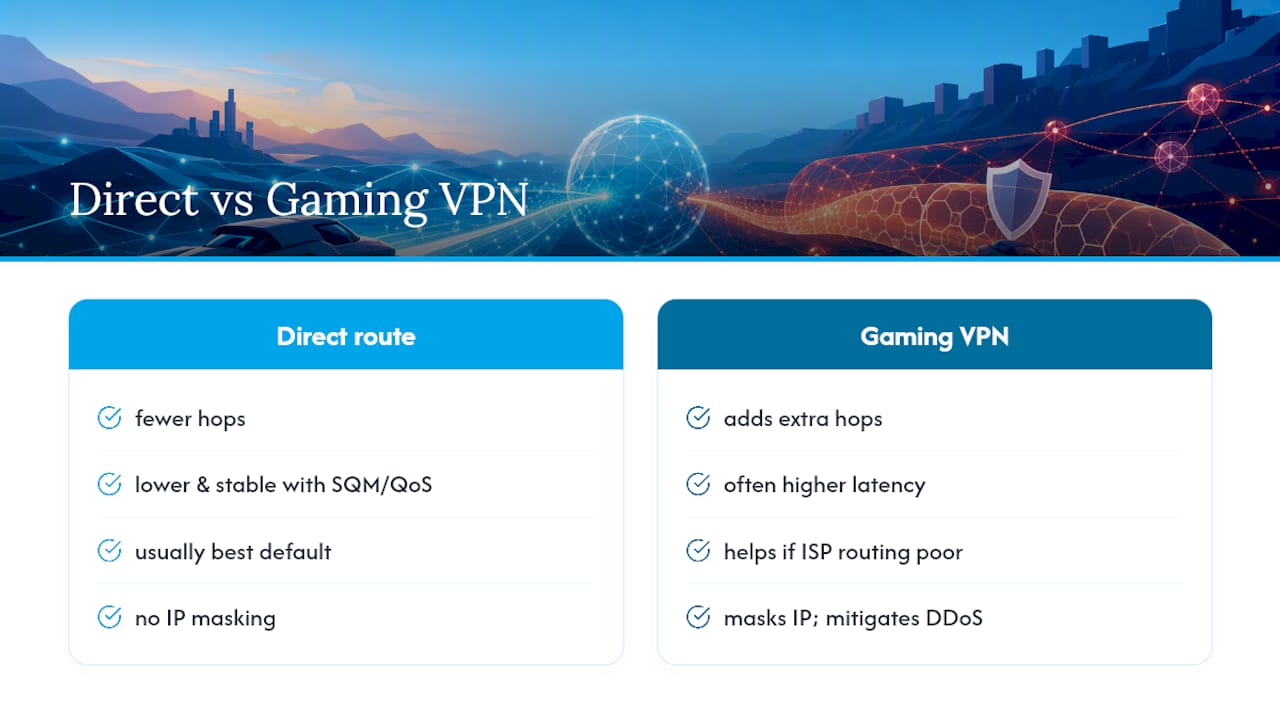
A gaming VPN reroutes your traffic through its own network of servers before it reaches the game's servers, and the honest answer is that this usually adds latency rather than removing it. Every extra hop between you and the destination is more distance for your packets to travel, and more distance means more time.
Where a VPN can genuinely help is routing. If your ISP's default path to a game server is congested or poorly peered, a VPN provider with better routing to that specific region can sometimes produce a lower, more stable ping than your default path. This happens more often with overseas servers than with anything local. Players connecting from regions with limited direct routes to a game's data centers occasionally see real improvement.
A VPN can also mask your IP address, which matters if you're dealing with targeted denial-of-service attacks after a match, a real problem in some competitive scenes. That's a security use case, not a performance one, and you should treat it separately from your latency-reduction plan.
The practical test: try your normal connection first, note your ping and jitter, then connect through a gaming VPN and run the same test to the same server. If the VPN doesn't measurably improve either number, skip it. Most of the time, a well-tuned direct connection with SQM and QoS configured beats a VPN detour. Save the VPN for the specific case where your ISP's routing to a particular region is demonstrably worse than an alternative path.
Why Updating Network Drivers Still Matters
Outdated network drivers on your console or PC are a common, invisible cause of packet loss and inconsistent ping that no router setting will fix. Manufacturers patch these drivers to resolve exactly the kind of micro-stutters and dropped packets that show up as unexplained lag spikes in-game.
On PC, go directly to your network card manufacturer's website (Intel, Realtek, or your motherboard maker) rather than relying solely on Windows Update, which often ships older, more generic drivers. Check for updates every few months, and always check right after a major Windows update, since those sometimes revert driver versions without warning.
On consoles, network driver updates are bundled into system firmware updates, so you don't manage them separately. Still, don't skip system updates for weeks at a time. Sony, Microsoft, and Nintendo regularly include networking stack improvements in these updates, and a console running old firmware on a fresh router can behave oddly even when everything else checks out.
The symptom to watch for is inconsistent behavior: your ping test looks fine, but you still get random hitches nobody else on the network experiences. That pattern points at drivers or firmware before it points at your ISP. Update, restart, and re-run your baseline tests to confirm the fix actually landed.
Are Mesh Wi-Fi Systems Good for Gaming?
Mesh systems solve a real problem: dead zones in larger homes where a single router just can't reach every room with a strong signal. For gaming specifically, though, mesh introduces tradeoffs that single-router setups don't have.
Every hop between your gaming device and the main router adds a small amount of latency, and if the mesh nodes talk to each other over Wi-Fi instead of a wired backhaul, that latency compounds with the wireless jitter already covered earlier. A satellite node three rooms away, relaying wirelessly back to the main unit, is a meaningfully worse setup than a single router with a strong direct signal.
The fix, where possible, is wiring your mesh nodes together with Ethernet for backhaul instead of relying on wireless mesh links. Most consumer mesh systems support this, and it removes the extra wireless hop entirely. If your gaming device sits near a mesh node, connect it directly to that node's Ethernet port rather than over Wi-Fi, even in a mesh setup.
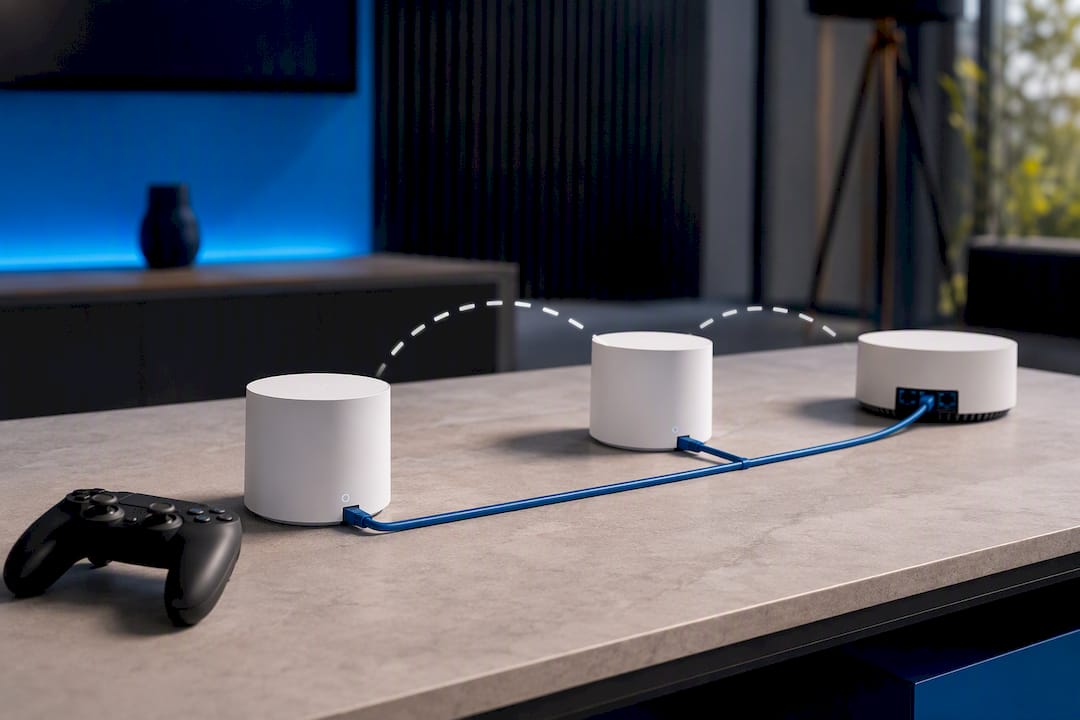
If you're building a network from scratch and gaming is the priority, a single capable router positioned centrally, paired with wired Ethernet to your gaming setup, will usually outperform a mesh system for latency and jitter. Mesh earns its place when coverage is the actual problem you're solving, not when raw gaming performance is the only goal.
What I'd Prioritize First, and Why
If you only have an hour to spend on this, the order matters more than the individual tweaks. Wire the connection first, since it removes the biggest variable. Fix bufferbloat with SQM second, because it's the change most people skip and the one that fixes the "fine until someone else uses the internet" complaint. QoS device priority comes third, NIC tweaks fourth, and GPU-side latency tech last, since it solves input latency, not round-trip time.
Test each change and write down the numbers. Frostchanger builds tools like lunaR and Elsify with the same test-driven mindset, shipping undetected, client-side software with a clean ban record since 2019.
— Blake
A Faster Way to Apply These Windows Tweaks
Manually hunting through Device Manager for EEE settings, interrupt moderation, and buffer tuning works, but it takes patience and a willingness to troubleshoot if something breaks. Frozen Tweaks, Frostchanger's Windows optimization tool, applies performance tuning, latency reduction, and system debloating in a fraction of the time it takes to do it by hand, without you needing to remember which registry setting controls what.
It's built by the same team behind lunaR, the CS2 skin changer suite, and Elsify, the Valorant loadout tool, both running client-side with a clean, undetected record since Frostchanger launched in 2019. Frozen Tweaks applies that same client-side, safety-first approach to your system settings instead of your inventory. If you'd rather skip the manual NIC tuning and let a tested tool handle it, check out Frostchanger's full product lineup and see whether Frozen Tweaks fits your setup before your next ranked session.